

Zapier integration
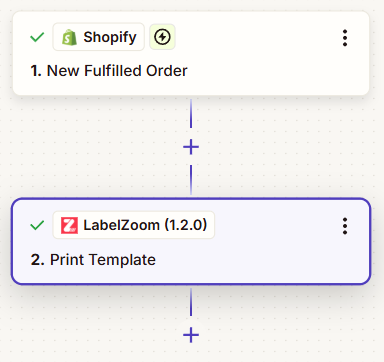
The LabelZoom integration adds label conversion and printing to a Zap, with no code. Converting is generally available. Printing uses Cloud Print, which is in public beta.
Before you begin
Section titled “Before you begin”- A LabelZoom API key. Zapier requires a connection, so the integration has no anonymous mode. Without a paid plan, output has a watermark; see Free tier.
- To print, a key with the
printscope, which includesconvert, and a printer connected through the LabelZoom Print Agent.
Connect your account
Section titled “Connect your account”To connect LabelZoom, follow these steps:
- In the LabelZoom dashboard, create an API key. See Authentication.
- In your Zap, add a LabelZoom step, and select Connect a new account.
- In API Key, paste the key.
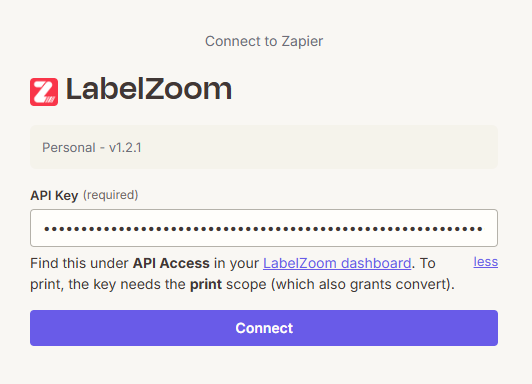
A key with only the convert scope works for Convert Label, but the Printer dropdown returns a scope error.
Actions
Section titled “Actions”| Action | What it does |
|---|---|
| Convert Label | Converts a document between any supported source and target format. |
| Print Label | Sends a document to a cloud printer, converting it to the printer’s language. |
| Print Template | Fills a published print template and prints it. |
| Find Print Job (search) | Looks up a print job to check whether it printed. |
Convert a PDF to ZPL
Section titled “Convert a PDF to ZPL”To convert a carrier’s PDF label to ZPL, follow these steps:
- Add a trigger for your order source, such as Shopify, ShipStation, Airtable, or a webhook.
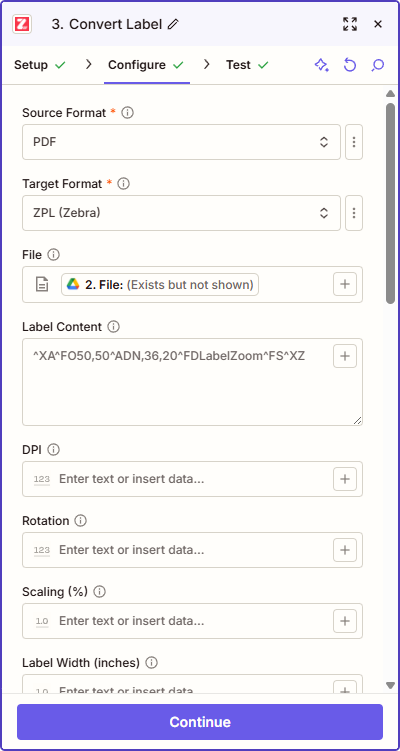
- Add LabelZoom > Convert Label.
- Set Source Format to PDF and Target Format to ZPL.
- In File, map the label PDF from the trigger. You don’t need to download it first.
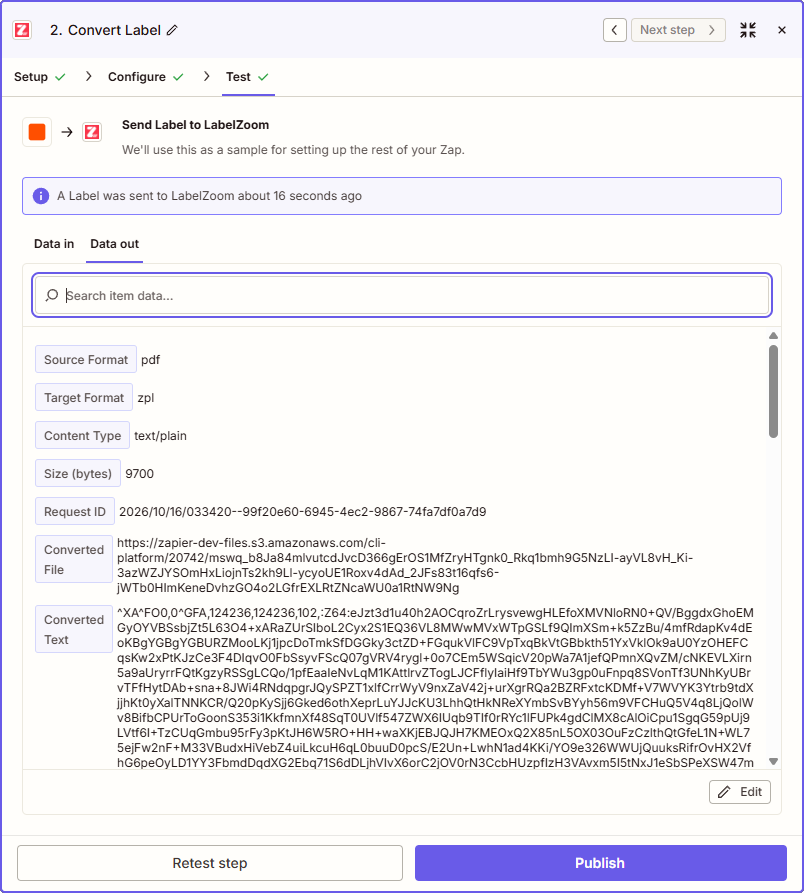
The action returns these fields:
| Field | Description |
|---|---|
| Converted File | The result as a file. Map it into Dropbox, Google Drive, Gmail, or a webhook step. |
| Converted Text | The result as text, for the zpl, xml, and json targets only. |
| Content Type, Size (bytes) | The type and size of the result. |
| Request ID | Include it when you contact support. |
EPL, TSPL, DPL, IPL, and SBPL output can contain binary data, so those targets return only Converted File; see Binary output.
Convert ZPL to a preview image
Section titled “Convert ZPL to a preview image”To send a preview for approval before a production run, follow these steps:
- Add LabelZoom > Convert Label.
- Set Source Format to ZPL and Target Format to PNG.
- In Label Content, enter or map the ZPL.
- Send Converted File to Slack or Gmail.
An image target returns only the first label; see Multi-label output.
Fill variable data
Section titled “Fill variable data”To fill a template’s merge fields, set Target Format to ZPL and enter an array in Variable Data (JSON). Each entry produces one label:
[{ "sku": "A-100", "qty": "12" }, { "sku": "A-101", "qty": "5" }]A single object produces one label. To build the JSON from trigger data, add a Formatter > Utilities > Text to JSON step, or use Print Template, which shows each merge field as its own Zapier field. For the placeholder syntax, see Merge fields.
Print a label
Section titled “Print a label”To print a document, follow these steps:
- Add LabelZoom > Print Label.
- In Printer, select a printer. The list shows each printer’s language and status, such as
Warehouse Zebra — ZPL (ready). - In Source Format, keep Auto-detect, unless you send EPL, IPL, TSPL, DPL, or SBPL; choose the format for those.
- In File or Label Content, map the document.
- Optional: In Copies, enter a number from 1 to 9999. Copies multiply with any quantity in the label; see Copies.
- Optional: In Idempotency Key, map a stable value such as
{{orderNumber}}. Zapier retries tasks, and the same key returns the original job instead of printing again; see Idempotency.
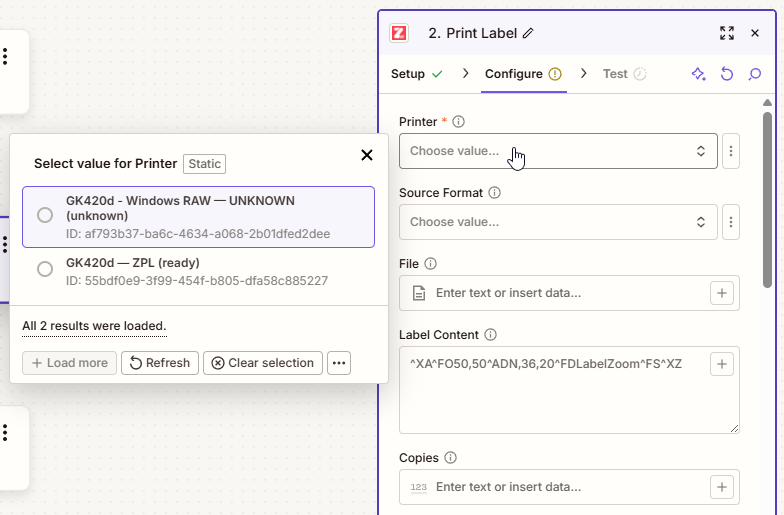
You don’t need a Convert Label step first. LabelZoom converts the document to the printer’s language, so a carrier PDF sent to a Zebra printer prints as ZPL. The conversion fields, such as Rotation, DPI, and Label Width (inches), apply here too.
The action returns when the job is accepted. dispatched and queued mean accepted, not printed; see Job statuses. To confirm that a label printed, add a Delay step, then LabelZoom > Find Print Job with the Job ID, and branch on its Printed field with a Filter.
Print a template
Section titled “Print a template”To print a template without writing JSON, follow these steps:
- Publish a template from LabelZoom Studio or the web designer.
- Add LabelZoom > Print Template.
- Select the Printer, then the Template. Zapier adds one field for each of the template’s merge fields, such as
orderNumberandsku. - Map your trigger data into those fields.
- Keep Validate Merge Fields on, so a missing value stops the job instead of printing the text
null.
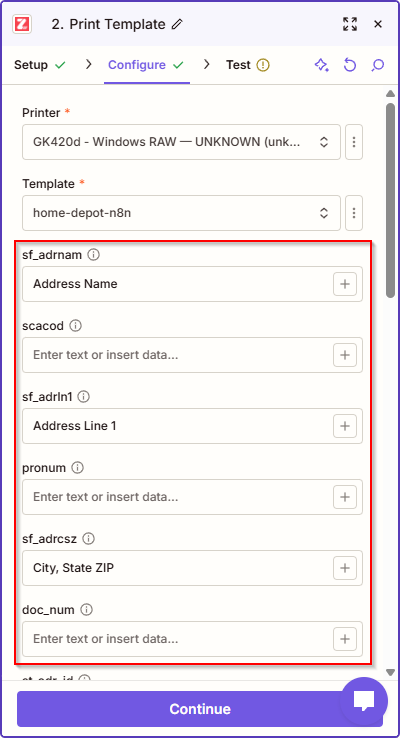
When you republish the template with new merge fields, the Zap shows them without being rebuilt. If the field names come from your data, use Additional Data (JSON); it’s merged over the mapped fields. For the API behind this action, see Templates.
Troubleshooting
Section titled “Troubleshooting”| Symptom | Fix |
|---|---|
| The output has a watermark. | The account that owns the key has no paid plan, or the key is invalid. A conversion with a bad key doesn’t fail; see Authentication troubleshooting. |
| The Printer dropdown shows a scope error. | Connect a key with the print scope. |
The step asks you to reconnect after a 401. |
Reconnect with a valid key. Don’t retry 401 or 403. |
A 429 response. |
Zapier retries the task after the Retry-After delay; see Rate limits. |
A job stays queued. |
No agent that serves the printer is online. The job prints when one reconnects. |
422 with agent_update_required. |
Update the agent to print more than one copy; see Update the agent. |
| A retried task printed twice. | Set Idempotency Key to a stable value, such as an order number. |
Production checklist
Section titled “Production checklist”- Run one conversion during setup and check it for a watermark. The connection test rejects a bad key, but a conversion with a bad key converts anonymously.
- Every Zap that uses the same API key shares its rate limit; see Rate limits.
- Set Idempotency Key on every print step. A deliberate reprint needs a new key.
- Keep the API key in the Zapier connection. A Webhooks by Zapier or Code by Zapier step can’t read it, so prefer the LabelZoom actions over calling the REST API from those steps.