

Print When conditions
A Print When condition decides whether an element prints on each label. The element prints only when its condition is true for that label’s data.
Video walkthrough
Section titled “Video walkthrough”Syntax
Section titled “Syntax”A condition goes in the printWhen attribute of any component in LabelZoom XML:
<component xsi:type="staticText" x="20" y="30" fontSize="12" printWhen='data.hazmat == "Y"'>HAZMAT</component>| Rule | Example |
|---|---|
Read a field with data. followed by its name. |
data.status == "HOLD" |
| For a name with spaces, dashes, or other characters, use brackets. | data["Ship-To"] == "CA" |
| Field names are case-sensitive. | data.status doesn’t read a key named Status. |
| Put text in double quotes. | data.lot == "A1" |
| The condition must be true or false. | data.lot != "", not data.lot |
| Keep the condition to 1,024 characters or fewer. |
The fields are the same keys you send for merge fields. A condition is checked separately for each label, using that label’s entry in data.
When an element prints
Section titled “When an element prints”| Condition | Result |
|---|---|
| Empty | Prints on every label. |
| True | Prints. |
| False | Hidden. |
Reads a field that’s missing from the label’s data, or the request has no data |
Hidden. |
A value can’t be converted, such as int(data.qty) when qty is abc |
Hidden. |
| Invalid, such as a syntax error or a result that isn’t true or false | The request fails with 400. |
A field sent as null counts as missing.
Values are text
Section titled “Values are text”Every field value is text, including JSON numbers and booleans. For example, {"qty": 12} reads as "12", and {"flag": true} reads as "true".
| To compare | Write | Not |
|---|---|---|
| A whole number | int(data.qty) > 10 |
data.qty > 10 |
| A decimal number | double(data.weight) >= 1.5 |
data.weight >= 1.5 |
| A boolean | data.flag == "true" |
data.flag == true |
The forms in the Not column compare text with a number or a boolean, so they’re invalid and return 400.
Operators and functions
Section titled “Operators and functions”| Use | Example |
|---|---|
| Equal, not equal | data.status == "HOLD", data.status != "HOLD" |
| Less than, greater than | int(data.qty) < 10, int(data.qty) >= 10 |
| And, or, not | data.a == "1" && data.b == "2", data.a == "1" || data.b == "2", !has(data.lot) |
| One of several values | data.status in ["HOLD", "QA"] |
| Starts with, ends with, contains | data.prtnum.startsWith("2JZ"), data.prtnum.endsWith("-1"), data.prtnum.contains("JZ") |
| Regular expression | data.prtnum.matches("^2[A-Z]+-[0-9]+$") |
| Length | size(data.lot) > 0 |
| Field is present | has(data.lot) |
| Label position | LABEL_NUMBER == 0 for the first label, LABEL_NUMBER == LABEL_COUNT - 1 for the last |
LABEL_NUMBER starts at 0 and LABEL_COUNT is the total number of labels, as in built-in fields.
Conditions use a subset of the Common Expression Language. The list macros all, exists, exists_one, map, and filter aren’t available.
Set a condition in Studio
Section titled “Set a condition in Studio”To show or hide an element in LabelZoom Studio 1.13.1 or later:
- On the Design tab, select the element.
- In the properties panel, under Appearance, enter the condition in PrintWhen, and then press Enter.
- If Studio shows an error, fix the condition. Studio rejects an invalid condition and restores the previous one.
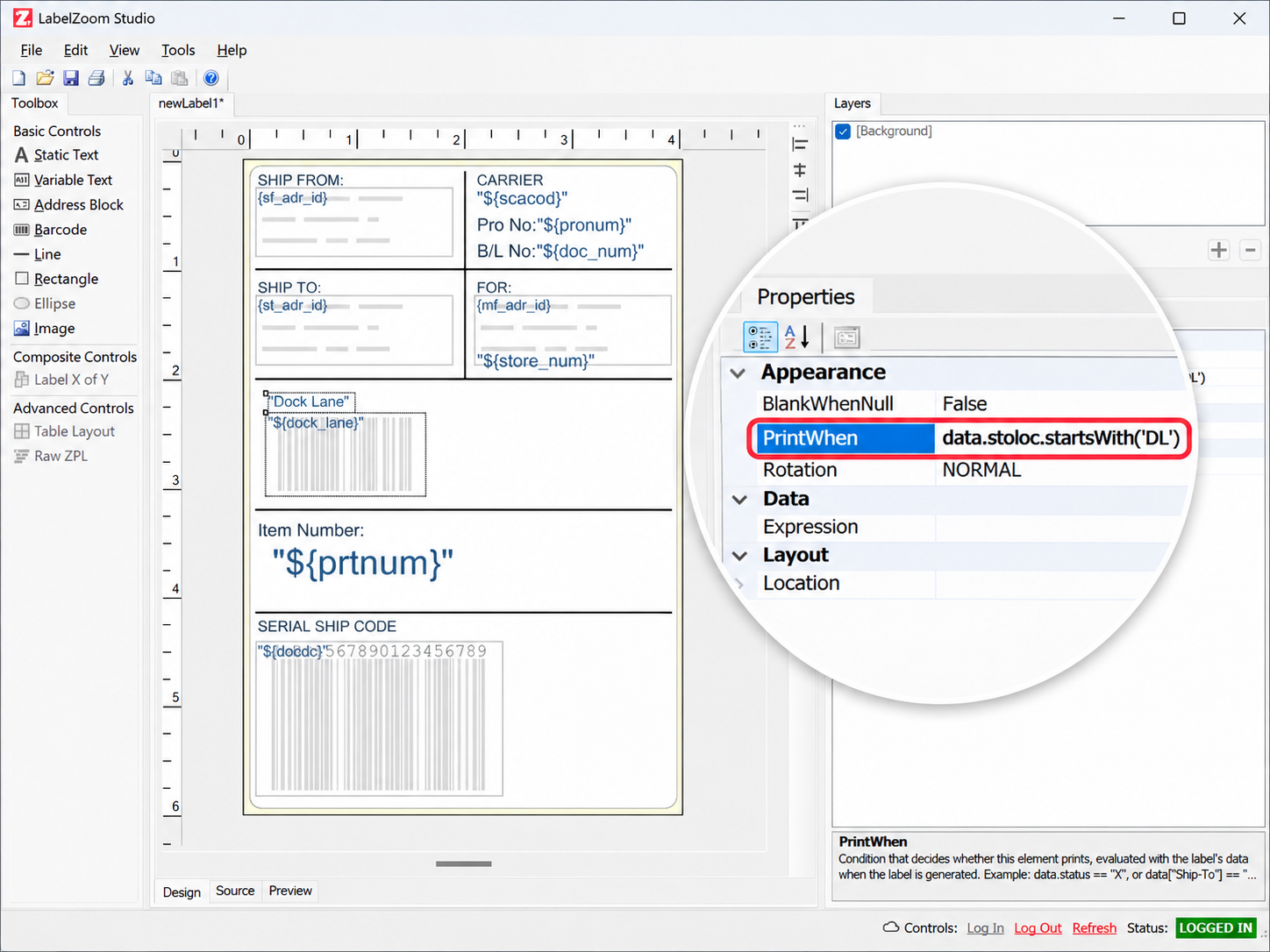
The design canvas always shows the element, whatever its condition. To see the result, test the condition with sample data.
Test a condition in Studio
Section titled “Test a condition in Studio”To check a condition before you print:
- Click the Preview tab.
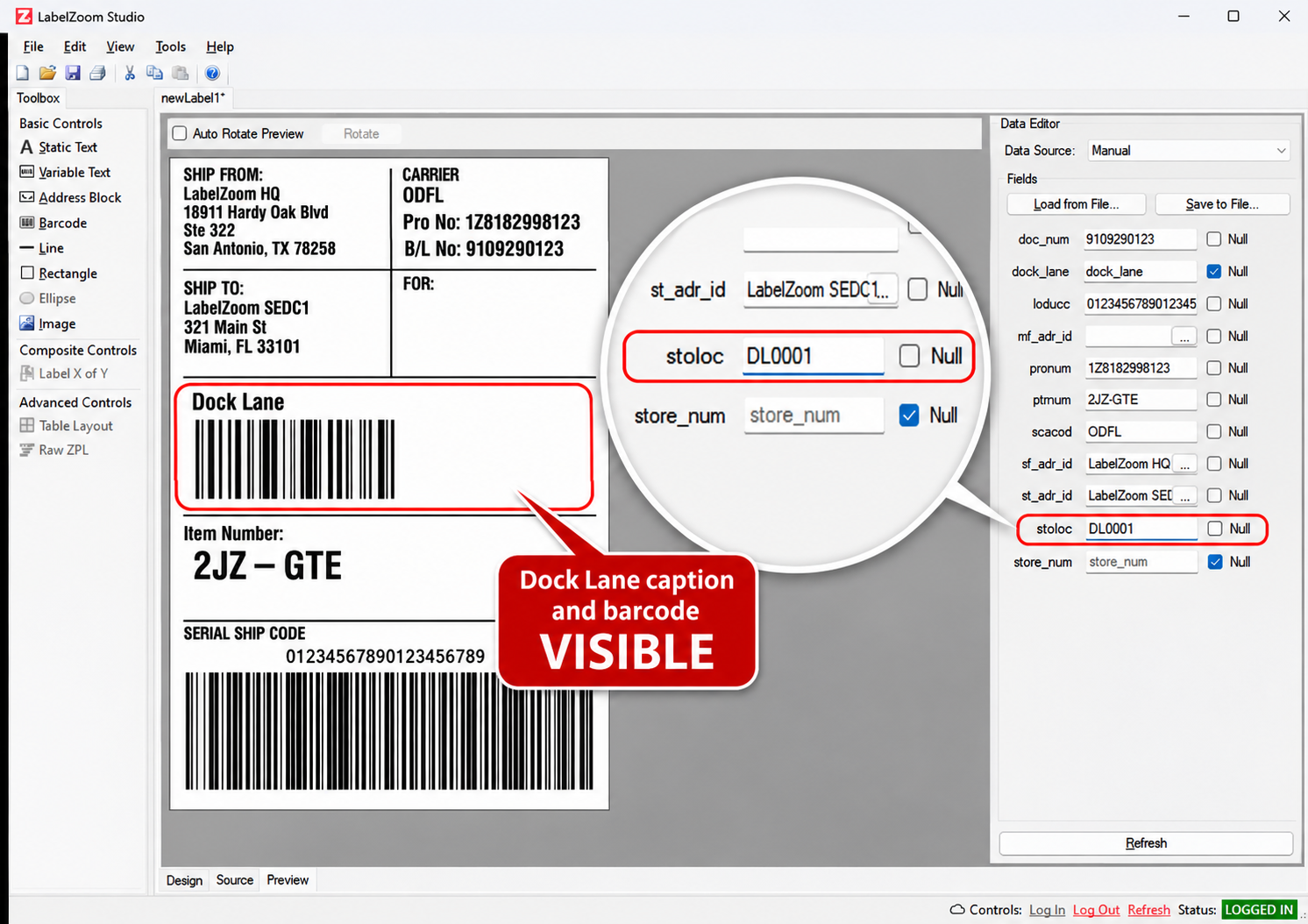
- In the Data Editor, set Data Source to Manual, and enter test data, such as
{"prtnum": "2JZ-100"}. - Click Refresh. The element appears when the condition is true.
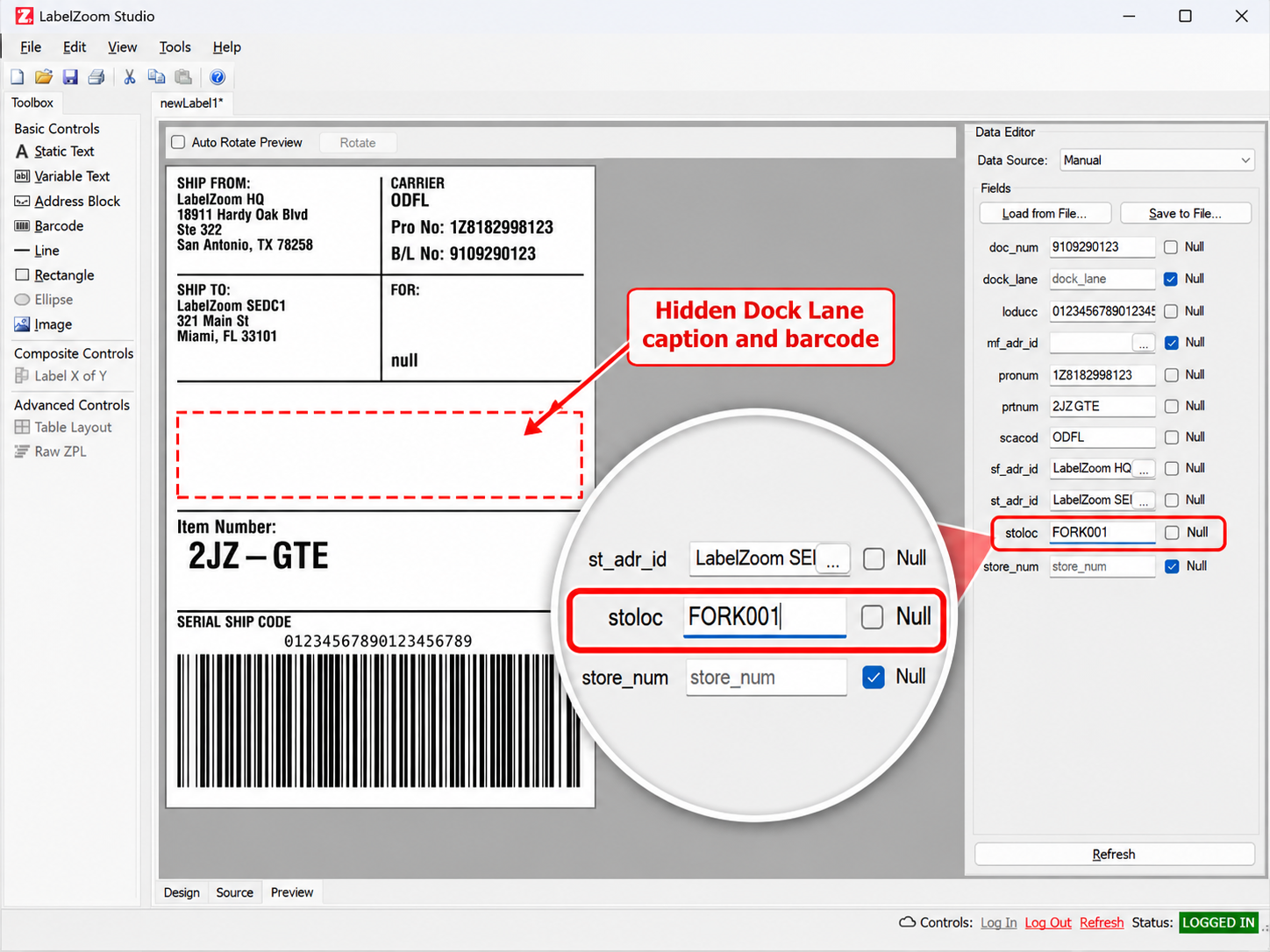
- Change the test data so the condition is false, such as
{"prtnum": "1KZ-100"}, and click Refresh again. The element disappears.
If the test data is an array, Preview uses its first entry.
Troubleshooting
Section titled “Troubleshooting”| Symptom | Fix |
|---|---|
| The element never prints. | Check that every label’s data includes the field, spelled with the same case. A missing field hides the element. |
| The element is hidden in Preview. | In the Data Editor, enter test data that makes the condition true, and click Refresh. Without test data, every field is missing. |
A condition with != hides the element. |
The field is missing. Check for it first: !has(data.status) || data.status != "HOLD". |
400 Invalid Print When condition on … |
The message names the element, its position, and where the condition fails. Fix the condition: for example, compare numbers with int(), close every quote, and make sure the result is true or false. |
What’s next
Section titled “What’s next”- Merge fields: the
datakeys that conditions read. - Variable data: send
datawith a conversion. - Errors: status codes and the error body.